
Vehicle status
Moving, idling and offline states are shown directly in the live view so dispatchers can act on current fleet activity without switching context.
Live Tracking
Find a vehicle on the map, check its last update and review available driver and trailer assignments. The data shown depends on the connected device and vehicle.
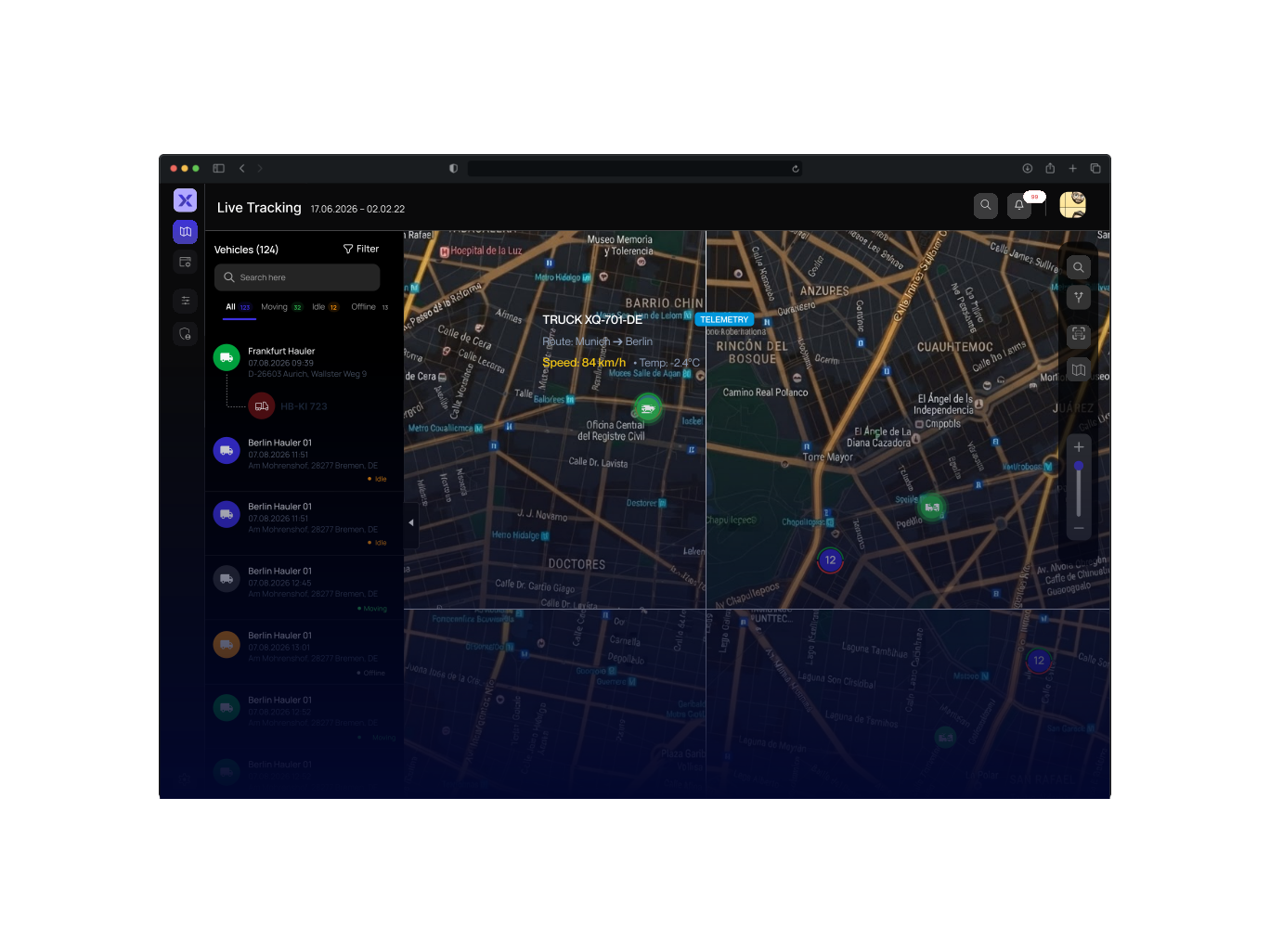
Product interface · Open full size ↗
Key Benefits
Moving, idling and offline states are shown directly in the live view so dispatchers can act on current fleet activity without switching context.
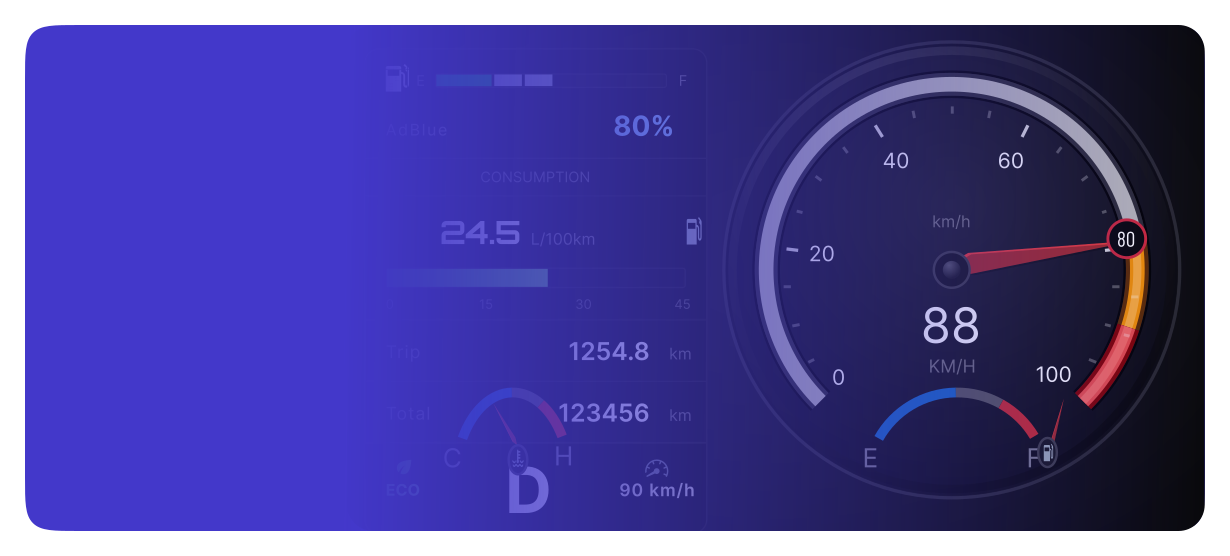
Review reported speed, RPM, fuel and coolant where supported. Check ignition status and data freshness when interpreting a reading.
Follow a selected vehicle, use Street View for sudden stops, and keep the map centered on the asset that needs attention.
Active driver and attached trailer are shown together in one continuous view, with assignment depending on the registered vehicle profile.
Capability 01
Review supported speed, RPM, coolant and fuel readings in the vehicle view.
Engine readings depend on ignition status and the connected vehicle. Check the latest timestamp before interpreting the values.

Capability 02
Follow active movement, auto-center selected vehicle, satellite/base layers, overlay toggles, zoom, Follow Item and Street View. Valid GPS coordinates are required and Street View depends on Google Maps coverage.
Use the map to verify route adherence, inspect stops, and open Street View when a sudden stop or unexpected location change needs more context.
Capability 03
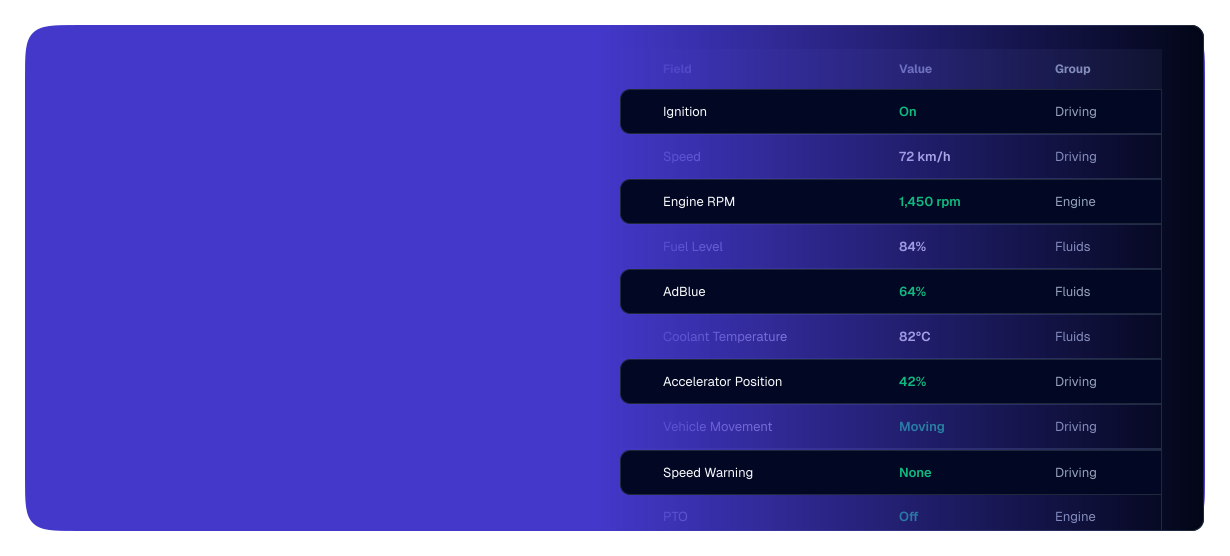
Ignition, speed km/h, engine RPM, fuel level L or %, AdBlue %, coolant °C, accelerator position %, vehicle movement, speed warning, PTO, odometer km, engine hours h and fuel consumption L.
Available fields depend on the vehicle and FMS connection. Missing or old readings should be checked against the device status.

Example assignment: a towing vehicle, trailer and driver shown together. Actual relationships depend on the assignment recorded in the system.
Vehicle 402
Driver Operator A
Plate V-402

Trailer T-105
Coupled
Plate T-105

Operator A
Session active
Last seen 12s ago
Trailer T-105 is attached to Vehicle 402 and Operator A is the active driver for the current session.
Review the recorded vehicle, trailer and driver relationship alongside the available status information.
User Workflow
Find the vehicle, check the freshness of its data and review the available details before deciding what to do next.
See All FeaturesSearch by plate or status for vehicles and connected trailers to quickly isolate the asset that needs attention.
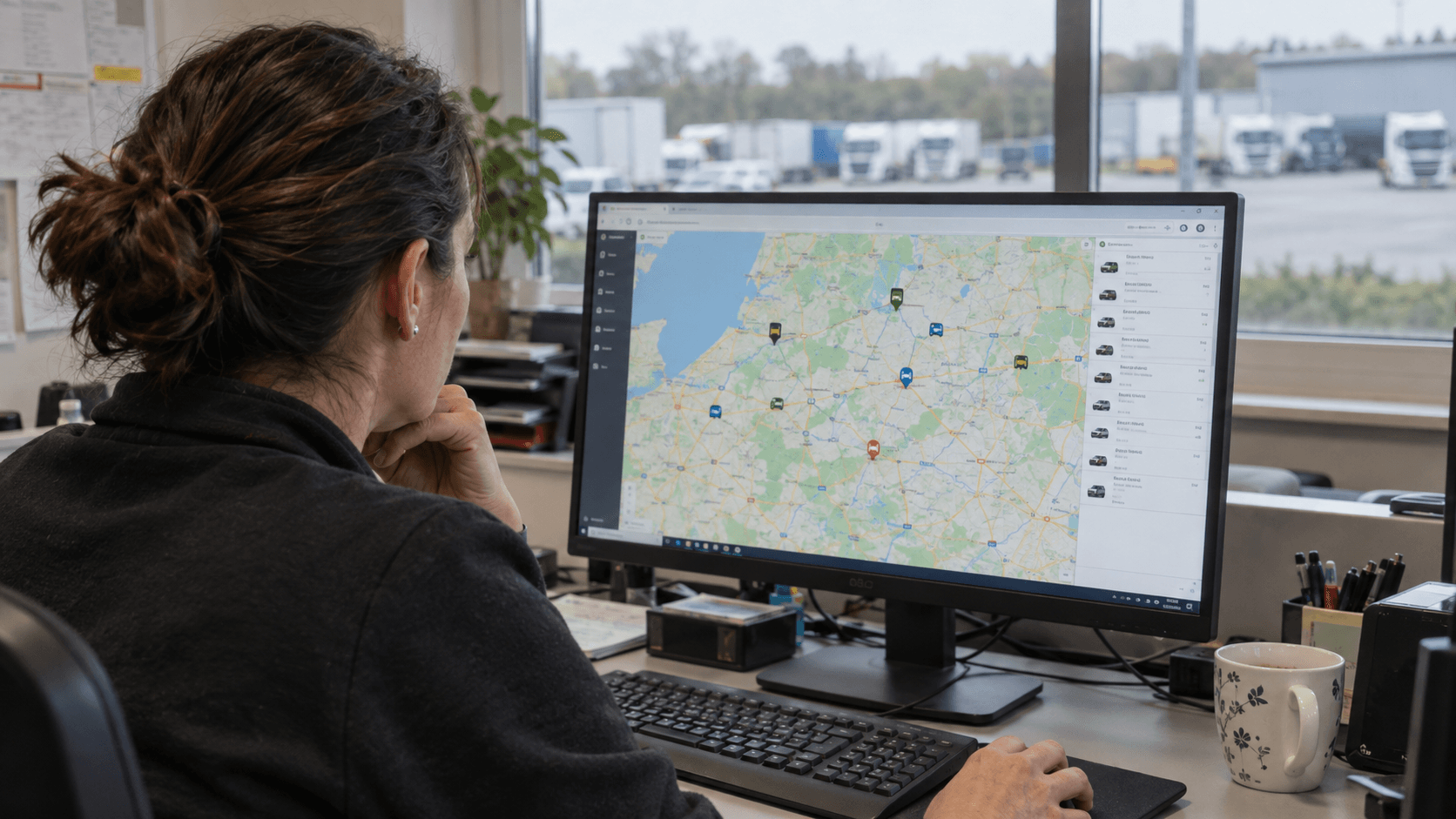
Center and follow the vehicle, then review movement status, location freshness and selected-asset context without leaving the live view.
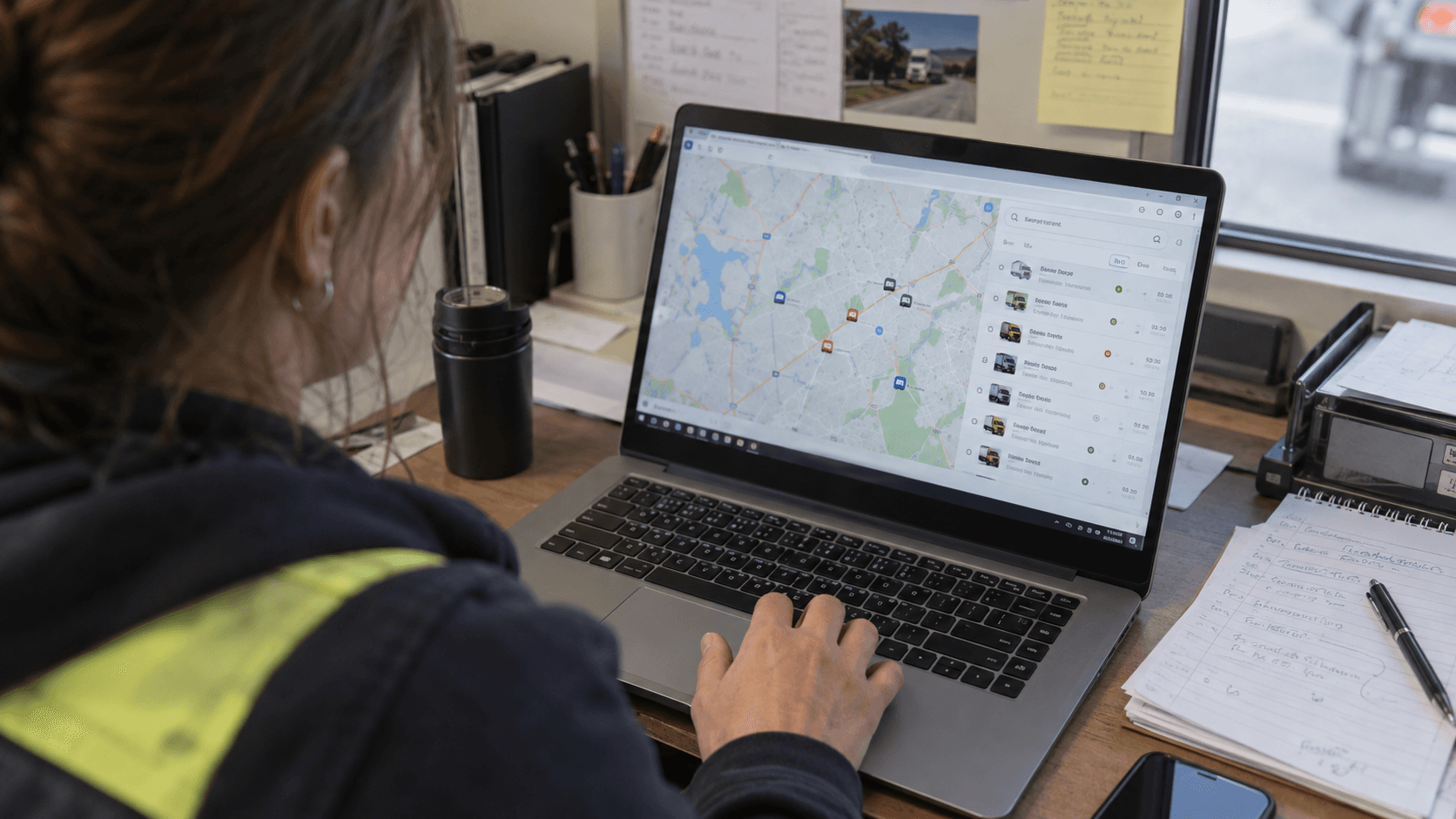
Check speed, RPM and fuel to understand the current operational state of the vehicle before deeper investigation.
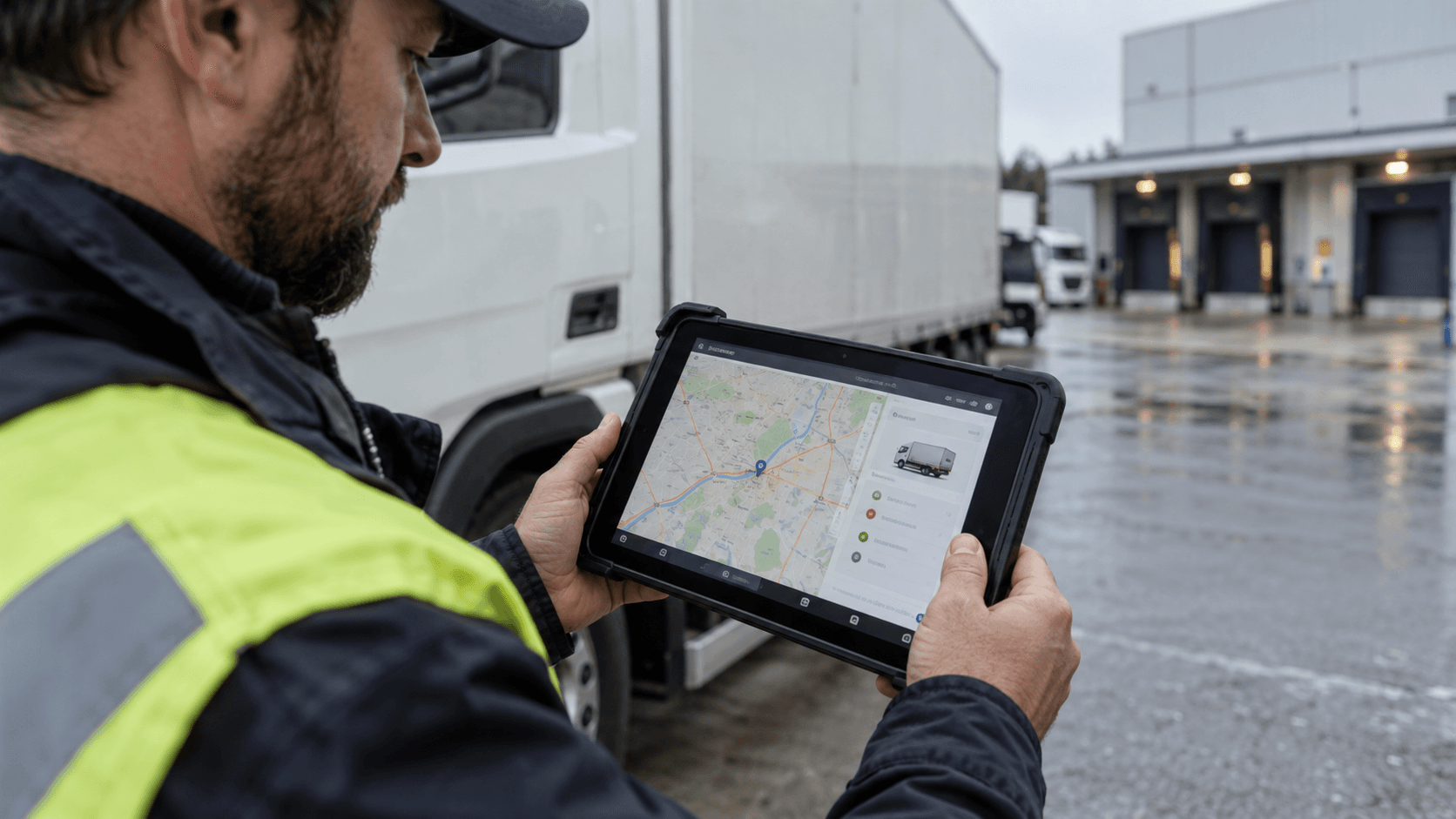
Review AdBlue, engine hours and other supported telemetry fields to understand the live and last-known vehicle context.

Open Street View for a sudden stop or unexpected location change to add road and physical context to the live map view.

Follow incoming updates and check the latest timestamp. Device, provider and network conditions determine when new readings arrive.
FAQ

Request a demo
Tell us which vehicles and devices you use. We will show you tracking, available vehicle data and the timestamps that help your team assess each update.